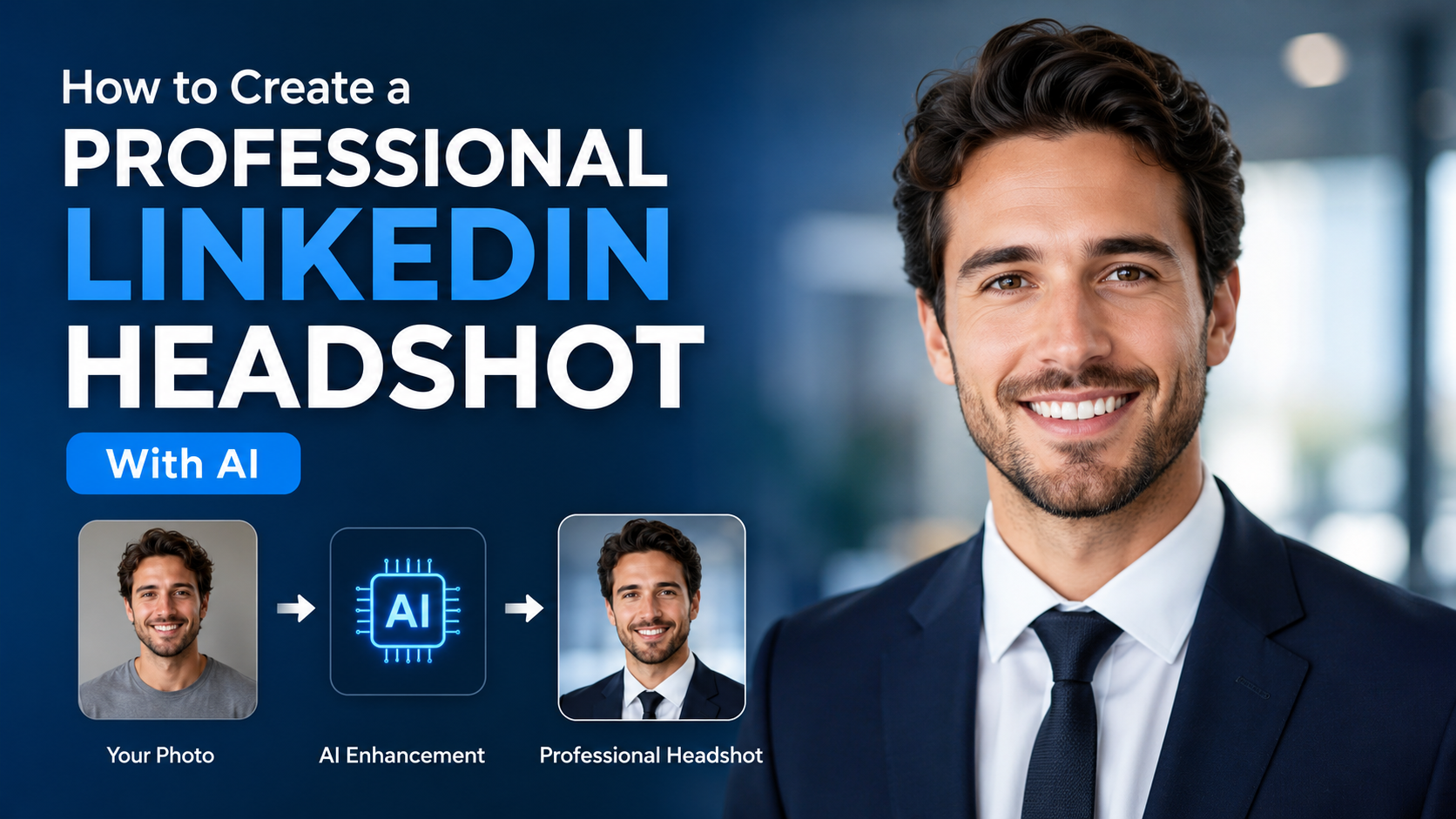
A good LinkedIn photo should make you recognisable, credible and approachable in seconds. An AI LinkedIn headshot generator can help turn a clear casual photo into a more polished professional portrait—without booking a studio—but the result still needs to look like you.
For Indian job seekers, consultants, founders and professionals, the best AI headshot is not the most dramatic one. It is a realistic, well-lit image that matches your current appearance and the expectations of your industry. This guide explains how to prepare photos, generate better results, protect your data and upload a headshot you can confidently use.
Key Takeaways
- Use recent, high-resolution source photos that clearly show your face from more than one angle.
- Choose a simple background, natural expression and clothing appropriate to your target role.
- Ask the AI to preserve your facial features, skin tone, hairstyle and age rather than "improving" them.
- Reject outputs with altered eyes, teeth, hands, jewellery, text or overly airbrushed skin.
- Read the generator's privacy and deletion terms before uploading biometric images.
- LinkedIn permits artistic renderings, but your profile image must still be your likeness.
Why Your LinkedIn Headshot Matters
LinkedIn describes a profile photo as a way for current and potential connections to recognise you. Its own profile guidance says members with a profile photo can receive up to twice as many profile views. LinkedIn Help
That does not mean an expensive studio photo is mandatory. What matters most is whether the image makes a recruiter, client or collaborator feel that your profile is authentic and current.
A professional headshot generally communicates:
- You are easy to identify in meetings, messages and networking events.
- You understand the professional context of LinkedIn.
- Your profile has been completed with care.
- Your visual presentation aligns with your role and industry.
An AI-generated headshot can be useful when you need a clean background, better framing or wardrobe variations. It should enhance presentation—not create a fictional version of you.
What LinkedIn Allows—and What It Expects
Before using an AI result, check it against LinkedIn's stated profile-photo rules. LinkedIn allows an illustration, caricature or other artistic rendering, provided it reflects your likeness. It may remove images that are not compliant, including photos consisting only of company logos, words, flags, animals, landscapes, celebrities or fictional characters. LinkedIn's profile-photo guidelines
This creates a simple standard for AI headshots: the image should still be recognisably you.
Avoid a generated photo that:
- Changes your face shape, complexion, hair texture or apparent age substantially.
- Shows a role-specific uniform, badge or workplace you do not actually have.
- Adds qualifications, logos, awards or affiliations you have not earned.
- Uses someone else's face as a base image.
- Looks so stylised that it could be mistaken for a stock portrait.
LinkedIn also states that untruthful profile information can violate its policies and may lead to account restrictions. LinkedIn's guidance on accurate representation Treat your AI image as a polished representation of your real appearance, not as a new identity.
Prepare Better Source Photos Before You Generate
The quality of the output depends heavily on the images you provide. AI cannot reliably reconstruct details that are hidden by poor lighting, blur or filters.
Build a small source-photo set
Use six to twelve recent photos of yourself. Include a mix of front-facing and slight-angle images, while keeping your face unobstructed.
| Use this | Avoid this |
|---|---|
| Recent photos with your current hairstyle | Old photos with a noticeably different look |
| Bright, even daylight or soft indoor light | Harsh shadows, coloured lighting or low light |
| Clear face, eyes and jawline | Sunglasses, masks, heavy filters or face-covering hair |
| High-resolution original files | Screenshots, compressed WhatsApp forwards or blurry selfies |
| Neutral expressions and natural smiles | Extreme poses, exaggerated expressions or beauty filters |
If possible, take fresh photos near a window with the camera at eye level. Face the light, keep the background uncluttered and use the rear camera or a phone's portrait mode carefully. Portrait mode is fine if it does not blur your hair edges or distort your face.
Choose clothing for your real professional context
There is no universal "correct" outfit. A software engineer, lawyer, creative professional and entrepreneur may all need different visual cues.
Choose clothing that you would realistically wear for a client meeting, interview or professional event:
- A solid-colour shirt, kurta, blouse, blazer or smart top usually photographs well.
- Mid-tone or darker colours often separate clearly from a pale background.
- Avoid busy prints, very small stripes and large logos.
- If your industry is formal, a blazer or business attire may fit; if it is creative or startup-oriented, smart casual may be more natural.
The goal is consistency between your headshot, your LinkedIn headline and the professional impression you want to create.
How to Use an AI LinkedIn Headshot Generator
Every tool has a different interface, but a reliable workflow is similar.
1. Review the service before uploading
Start with the provider's privacy policy, terms of use and deletion process. Your face image is personal data, so confirm:
- Whether uploaded images are retained and for how long.
- Whether the provider uses uploads or outputs to train models.
- Whether you can delete your account and images.
- Whether generated images are private by default.
- Whether commercial or professional use is permitted under its terms.
India's Digital Personal Data Protection Act, 2023 addresses processing of digital personal data within India in specified circumstances. This is not a substitute for legal advice, but it is a practical reason to be selective about where you upload face images. Read the service's notices carefully rather than assuming that a free tool has the same protections as a paid one. Digital Personal Data Protection Act, 2023
Do not upload another person's image without their permission.
2. Select a realistic style
Pick the option closest to a conventional professional portrait: head-and-shoulders framing, eye-level camera, soft light and a plain or subtly blurred background.
Avoid cinematic, fashion-editorial, luxury-office or celebrity styles unless they genuinely fit your personal brand. In most hiring and client-facing contexts, understated beats spectacular.
3. Give a precise prompt, if the tool accepts one
A prompt should describe the result you need while clearly instructing the tool not to change your identity.
Example prompt for a corporate role:
Create a realistic, high-resolution LinkedIn headshot of the same person. Preserve facial features, skin tone, hairstyle and age. Head-and-shoulders composition, direct eye contact, relaxed natural expression, soft daylight, neutral light-grey background, smart business-casual clothing, realistic skin texture, no text, no logos.
Example prompt for a consultant or founder:
Produce a natural professional portrait of the same person for LinkedIn. Preserve identity exactly. Use a warm, approachable expression, clean office-neutral background, soft even lighting and smart-casual clothing. Keep the image realistic, not stylised or overly retouched.
Use negative instructions where supported: "no altered facial features, no extra fingers, no text, no watermark, no artificial skin smoothing."
4. Generate several options, then compare them
Do not choose the first attractive result. Compare several images beside one of your original photos. A good output should pass a "recognition test": would a colleague who has met you identify you immediately?
Choose the strongest image only after checking it at small size, because LinkedIn profile photos are commonly viewed as a small circle rather than as a full-resolution portrait.
Evaluate the Result Like a Recruiter Would
An AI image can look technically polished while still feeling unconvincing. Review it in three passes.
Identity and realism
Check whether your:
- Eyes point naturally in the same direction.
- Facial proportions and smile resemble you.
- Skin texture looks human rather than plastic.
- Hairline, ears, glasses and jewellery are consistent.
- Clothing seams, collars and buttons look believable.
Professional relevance
Ask whether the photo fits the work you want. For example, a CA, product manager, designer or university researcher can all use professional headshots, but the wardrobe and background should not send the wrong message.
Technical quality
Look for blur, odd lighting, warped edges and compression. A simple crop with your face taking up most of the frame usually works better than a distant portrait.
If the image creates uncertainty about whether it is you, use a different result or take a straightforward new photograph. Authenticity is more valuable than visual perfection.
Common AI Headshot Mistakes to Avoid
The most common mistake is over-editing. A profile image should help people recognise you when you join a video call or arrive at an interview.
Watch for these problems:
- An idealised face: Extreme skin smoothing, a changed jawline or a much younger appearance can undermine trust.
- Unrealistic wardrobe: Do not present yourself in a uniform, office or formal attire that misrepresents your role.
- Distracting background details: AI can create misspelt signage, fake books, distorted plants or strange architectural lines.
- Cultural mismatch: Choose styling that feels comfortable and professional for you, rather than copying a generic global template.
- Visible watermarks: Use only an image that you are permitted to use and that is free of unwanted branding.
- No original saved: Keep your source photos and final selected file in a secure folder in case you need to update or replace the image.
Synthetic-content guidance from the US National Institute of Standards and Technology highlights the broader importance of provenance, labelling and authentication in generative AI. For a personal LinkedIn image, the practical lesson is simple: use AI responsibly and do not use it to deceive people about who you are. NIST report on synthetic content
Upload and Optimise Your LinkedIn Profile Photo
Once you have a final image, upload it directly from your LinkedIn profile. Check the crop on both desktop and mobile so that your eyes, face and hair are not cut off by the circular display.
LinkedIn notes that members can manage visibility settings for their profile photo, including limiting it to connections, their network or all LinkedIn members. LinkedIn profile-visibility guidance
Before saving, check:
- Your face is centred and visible at thumbnail size.
- The background does not merge with your hair or clothing.
- The image looks natural next to your headline and banner.
- Your selected visibility setting matches your privacy preference.
- The photo is still a current likeness of you.
Update the headshot when your appearance changes materially or when your career direction changes. A current image is more useful than a highly edited one from years ago.
Frequently Asked Questions
Is it acceptable to use an AI-generated headshot on LinkedIn?
Yes, provided the image is genuinely your likeness and complies with LinkedIn's policies. LinkedIn allows artistic renderings of a member, but images that do not reflect the person may be removed. Choose a realistic result that accurately represents your current appearance.
How many photos should I upload to an AI headshot generator?
Use enough recent, clear photos for the tool to capture your face from different angles—typically a small set rather than one heavily filtered selfie. Follow the specific tool's upload instructions, but prioritise consistency, sharpness and natural lighting.
Should I disclose that my LinkedIn headshot was created with AI?
LinkedIn's cited profile-photo guidance focuses on whether the image reflects your likeness. If the result is a truthful, lightly polished representation of you, the key issue is accuracy. If an image substantially changes your appearance or could mislead viewers, do not use it.
What background is best for an AI LinkedIn headshot?
A plain neutral background—such as soft grey, off-white, muted blue or a lightly blurred real workspace—usually works well. It keeps attention on your face and remains suitable across industries.
Is it safe to upload my photos to a free AI headshot tool?
Safety depends on that provider's practices. Review its privacy policy, retention period, model-training terms, account-deletion options and commercial-use terms before uploading. Avoid services that do not clearly explain how they handle user images.
Conclusion
An AI LinkedIn headshot generator can be a practical way to create a professional profile image, especially when you start with clear, recent source photos and use restrained styling. Choose a result that looks like you, suits your professional field and respects your privacy preferences.
Generate a few realistic options, compare them against your original photos, then upload the one that makes you instantly recognisable and professionally confident.