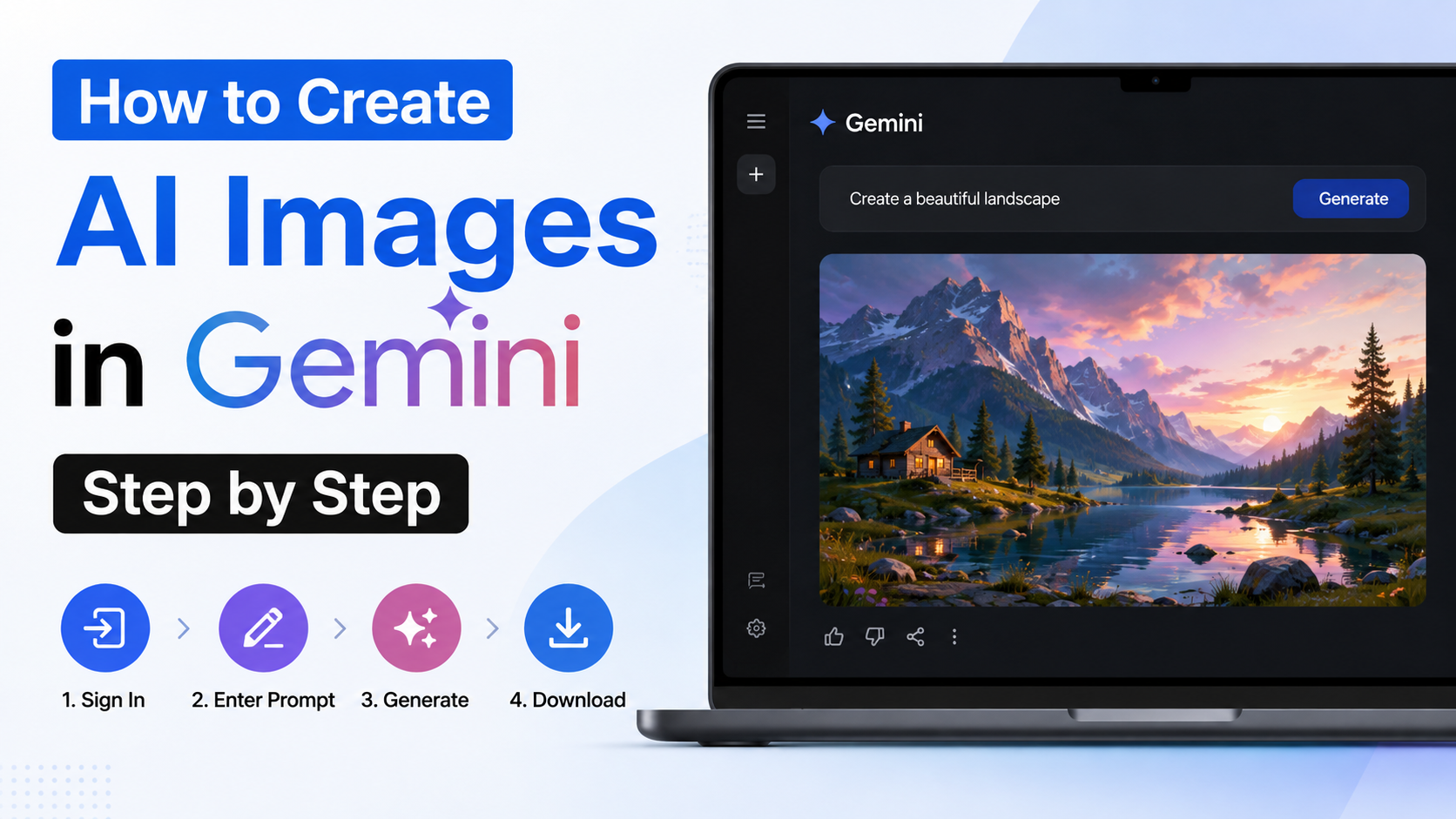
If you want to turn an idea into a poster, product visual, social-media creative, illustration, or concept image, Gemini lets you describe what you need in plain language. Learning how to create AI images in Gemini is less about technical design skills and more about giving the tool a clear visual brief.
Gemini's image-generation feature is available through the Gemini web app and mobile app in India. You can create original images from a text prompt, refine images generated in the same chat, or upload images and request edits. This guide explains the complete workflow, including prompt writing, downloads, edits, practical examples, and important limitations.
Key Takeaways
- Create images in Gemini by selecting the image option and entering a detailed text prompt.
- Gemini is available through both the web app and mobile app in India.
- Better results come from specifying the subject, setting, style, lighting, composition, and intended use.
- You can upload an image and request changes such as background replacement or product-photo improvements.
- Review generated visuals carefully before publishing, especially where text, people, brands, copyright, or accuracy matter.
- Availability, interface labels, models, and usage limits can vary by account, region, and plan.
What You Need Before Creating AI Images in Gemini
Before starting, make sure you have:
- A personal Google Account
- Access to Gemini in a supported browser, or the Gemini mobile app
- A stable internet connection
- A clear idea of the image you want to create
Google lists India among the countries where the Gemini web app and mobile app are available. The web app supports several Indian languages, including Hindi, Bengali, Gujarati, Kannada, Malayalam, Marathi, Tamil, Telugu, Urdu, and others. However, individual features may have different availability depending on your account, language, app version, and location.
For simple image creation, write your prompt in the chat box. In the current Gemini interface, you may also see an image-related option through the add-files menu or the Images area in the sidebar. Interface wording can change over time, so look for options such as Images, Create image, or an image icon.
How to Create AI Images in Gemini on a Computer
The desktop version is useful when you want to write detailed prompts, compare results, upload references, or download files for work.
Step 1: Open Gemini and sign in
Go to gemini.google.com and sign in with your Google Account.
If you are using a work or school account, your organisation's administrator and licence may control whether Gemini features are available. A personal account is usually the simplest way to access consumer Gemini features.
Step 2: Select the image-generation option
In the Gemini interface, open the image option. Depending on the version you see, this can be done by:
- Opening the sidebar and selecting Images
- Clicking the add-files or plus icon and choosing Create image
- Entering an image-generation request directly into the prompt box
Step 3: Write a detailed image prompt
Describe what you want Gemini to make. Start with action words such as "Create," "Generate," or "Draw," then add specific visual instructions.
For example:
`text
Create a realistic product photograph of a stainless-steel water bottle on a light wooden table, soft morning window light, green indoor plant in the background, clean Indian e-commerce style, vertical composition.
`
Submit the prompt and wait for Gemini to generate the image.
Step 4: Review the result
Check whether the image matches your purpose. Look closely at:
- The main subject and its proportions
- The background and unwanted objects
- The intended style
- Colours and lighting
- Any visible text, labels, or logos
- Whether the image feels suitable for your audience
AI-generated text inside an image can still be inaccurate or misspelt. If your creative requires exact Hindi, English, or regional-language copy, create the visual first and add final text later in a design editor.
Step 5: Refine the image in the chat
Do not start from scratch if the result is close. Give a focused follow-up instruction, such as:
`text
Keep the same bottle and composition, but make the background plain off-white, remove the plant, and leave empty space at the top for a headline.
`
Using clear, single-purpose refinements is often more effective than rewriting every instruction at once.
Step 6: Download the image
Hover over the generated image and use the download option to save the full-size file. Gemini may provide different download resolutions depending on your account and plan.
Save versions with sensible filenames, especially if you are creating multiple variations for a campaign. For example:
`text
diwali-candle-product-creative-v1.png
diwali-candle-product-creative-v2.png
`
How to Create AI Images in Gemini on Android and iPhone
The mobile process is similar and works well for quick social posts, concept visuals, and editing images from your phone.
- Open the Gemini app.
- Tap the add-files, plus, or image option.
- Select Images or Create image if that option appears.
- Type a detailed prompt.
- Tap submit.
- Open the result, then download, share, or continue editing it.
For example, a local business owner could enter:
`text
Create a warm, premium Instagram story background for an Indian handmade jewellery store, deep maroon and gold palette, subtle festive lights, elegant empty space in the centre, no text.
`
Using "no text" is helpful when you plan to add your own offer, price, or call-to-action later in Canva, Google Slides, or another design tool.
Write Better Gemini Image Prompts
The strongest prompts explain not just the object but the visual outcome you need. A reliable structure is:
| Prompt element | What to specify | Example |
|---|---|---|
| Subject | Main person, product, place, or object | A college student with a laptop |
| Action | What is happening | Studying at a café |
| Setting | Location and background | Modern café in Bengaluru |
| Style | Desired visual approach | Editorial lifestyle photography |
| Composition | Framing and orientation | Vertical, subject on the right |
| Lighting and colour | Mood and palette | Soft daylight, warm neutral tones |
| Constraints | What to avoid | No text, no visible logos |
A reusable prompt template
`text
Create a [style] image of [main subject] [action] in [setting]. Use [lighting], [colour palette], and [composition]. The image is for [purpose]. Include [important details]. Avoid [unwanted details].
`
Example: travel blog header
`text
Create a cinematic travel photograph of a solo traveller standing near tea gardens in Munnar, Kerala, early morning mist, soft natural light, wide landscape composition, calm and aspirational mood, no text or watermark.
`
Example: education-related social post
`text
Create a clean flat illustration of Indian students preparing for an exam at a library table, notebooks, laptop and highlighters, modern blue and yellow colour palette, square social-media format, leave room at the top for a title, no text.
`
Example: food-business creative
`text
Create a top-down food photograph of masala dosa served on a banana leaf with sambar and coconut chutney, bright natural light, authentic presentation, premium restaurant-menu style, vertical format, no text.
`
How to Edit an Existing Image in Gemini
Gemini can also help you transform an image rather than generate a new one from words alone. You can upload an image from your device and explain the changes you want.
Common editing requests
- Remove a distracting background object
- Change the background colour
- Turn a casual product photo into a cleaner studio-style image
- Create a new visual using multiple reference images
- Change the mood, season, style, or composition
- Improve a concept sketch into a polished illustration
Step-by-step editing workflow
- Start a Gemini chat.
- Use the add-files option to upload your image.
- Write a direct edit instruction.
- Review the generated result.
- Send a follow-up prompt for precise corrections.
For example:
`text
Use this uploaded image of a handmade candle. Keep the candle's shape, label and colour unchanged. Replace the background with a warm festive home setting, soft diya lights in the distance, premium product-photography lighting, no extra products.
`
Be specific about what must remain unchanged. If you only say "make this better," Gemini has too much room to interpret the request.
Google notes that image editing is not available to users under 18. If an edit option is unavailable, create a new image from a detailed description instead.
Choose the Right Prompt Strategy for Your Goal
Different use cases need different instructions. The table below can help you decide what to emphasise.
| Goal | Prioritise in your prompt | Useful constraint |
|---|---|---|
| Instagram post | Vertical or square format, mood, empty text space | "No text" |
| Product image | Product details, clean lighting, background | "Keep label unchanged" |
| Blog featured image | Landscape composition, topic, visual hierarchy | "No watermark" |
| YouTube thumbnail concept | High contrast, clear subject, facial expression | Add text later manually |
| Festival campaign | Relevant colours, props, respectful context | Avoid stereotypical details |
| Presentation visual | Simple composition, uncluttered background | "Minimal, professional" |
For Indian audiences, context can make a visual more relevant: a metro setting, local attire, familiar food, regional architecture, or an Indian workplace. Still, give details thoughtfully. "An Indian professional" is broad; "a woman entrepreneur presenting sustainable packaging in a modern Pune office" gives Gemini a much clearer brief.
Important Limits, Safety, and Publishing Checks
Gemini-generated images can support brainstorming and production, but they should not replace human judgement.
Respect privacy and consent
Do not upload another person's photograph or create realistic depictions of them without appropriate permission. This is particularly important for clients, employees, children, and public-facing campaigns.
Avoid copyright and trademark problems
Do not ask for copied characters, brand-identical advertisements, or visuals that imply an endorsement from a company or celebrity. If you use reference images, make sure you have the right to use them.
Check facts and text manually
Treat images involving maps, charts, product claims, medical information, government schemes, prices, statistics, or instructions with extra care. An AI image can look convincing while containing incorrect details.
For marketing, education, financial, legal, health, or news-related material, verify every visible claim independently before publishing.
Understand account and usage differences
Gemini image-generation access, model choices, generation limits, quality options, and download resolution can change. Google AI plan subscribers may have access to additional options, while free access may have different limits. Check the options shown in your own Gemini account rather than relying on an old tutorial or assumed quota.
Troubleshooting Common Gemini Image Problems
The image does not match the prompt
Simplify the first prompt. State the essential subject, setting, style, and composition, then refine it in a second message.
The output contains unwanted objects
Name what should be removed:
`text
Remove all people, vehicles, printed words and logos from the background.
`
The image looks too generic
Add location, mood, material, camera angle, lighting, and purpose. Generic prompts produce generic results.
The image text is incorrect
Use Gemini to create the visual without text, then add approved copy in a dedicated design tool. This gives you control over spelling, typography, and brand consistency.
The image option is missing
Confirm that you are signed in, update the Gemini app if you are on mobile, try the Gemini web app, and check whether the feature is available for your account and language. Work or school accounts may have different access rules.
Frequently Asked Questions
Is Gemini available for creating AI images in India?
Yes. Google lists India as a supported location for the Gemini web app and Gemini mobile app. Feature availability can still vary by account type, language, app version, and plan.
Can I create AI images in Gemini for free?
Gemini can offer image-generation access without requiring a paid plan, but usage limits and available options may differ by account. Google AI plans can provide expanded access to some Gemini capabilities. Check the features and limits displayed in your account before planning regular commercial production.
Can I upload a photo and ask Gemini to edit it?
Yes. Gemini supports uploading images and requesting edits, including changes to a generated image or a photo from your device. Clearly state what should remain unchanged and what should be altered.
Can Gemini create images with Hindi or English text?
You can ask for text in an image, but always inspect the result carefully. For exact wording, official information, prices, or branded copy, add the final text manually after downloading the visual.
Can I use Gemini-generated images for business or social media?
You can use generated visuals only after reviewing them for accuracy, privacy, copyright, trademark, and brand-safety concerns. Do not publish content that infringes another person's rights, misleads viewers, or violates Google's policies.
Conclusion
Knowing how to create AI images in Gemini starts with a precise prompt: describe the subject, setting, style, lighting, composition, and intended use. Create the first version, review it carefully, and use focused follow-up instructions to improve it. For the best professional result, download the final visual and add exact text, prices, claims, and branding in a design tool you control.
Start with one practical use case—such as a blog header, product concept, or festival social post—and test three prompt variations. You will quickly learn which level of detail produces the visual style your audience expects.