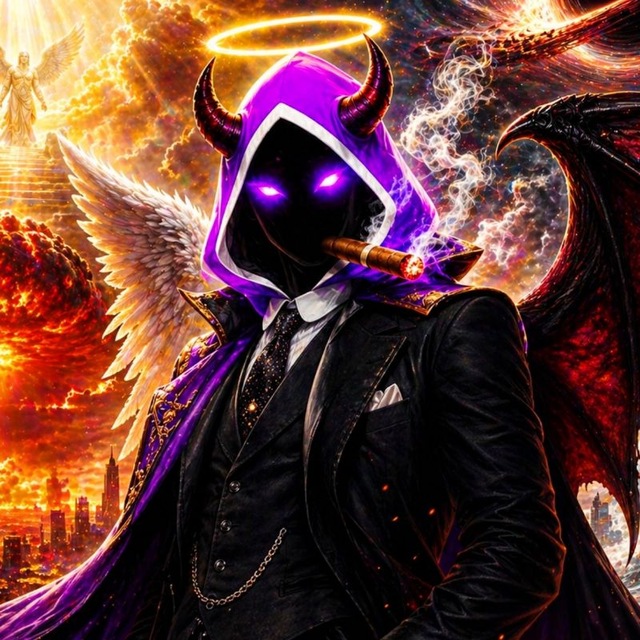

You do not need a laptop, design software, or drawing skills to create AI images on phone. With a capable image-generation app, a clear written prompt, and a few minutes of iteration, you can make social-media visuals, product concepts, festival creatives, presentation illustrations, and personalised artwork directly from Android or iPhone.
The best approach is simple: choose a reliable app, describe exactly what you want, generate several versions, then refine the strongest result. This guide explains the complete mobile workflow, including prompt writing, editing, downloads, and responsible use in India.
Key Takeaways
- AI image generation works through text prompts; better descriptions produce more controlled results.
- ChatGPT Images, Gemini Apps, and Adobe Firefly all support mobile image-creation workflows.
- Choose the image shape before generating: vertical for Stories, square for posts, and landscape for banners.
- Use follow-up instructions to correct one issue at a time instead of starting every image from scratch.
- Do not upload private documents, client material, or another person's photograph without permission.
- Check each platform's current plan, limits, and commercial-use terms before relying on it for business work.
What You Need to Create AI Images on Phone
Most people can begin with only:
- An Android phone or iPhone with a stable internet connection
- An account for the AI image app you choose
- A clear idea of the image's purpose
- Enough phone storage to save final images
- Optional reference photos that you have permission to use
AI image generation is generally cloud-based, so the creative processing happens on the provider's systems rather than requiring a powerful phone. Your phone is mainly the place where you write prompts, upload reference images, review results, edit, and download.
For Indian users, account and feature availability can vary by app, device, language, account type, and location. For example, Google lists India among the supported locations for the Gemini mobile app, but individual Gemini features can still have separate eligibility requirements. Review the app's in-product notices if an option does not appear.
Choose a Mobile AI Image Generator
Several established services let you generate images from a phone. The ideal choice depends on whether you need quick concept art, conversational edits, controlled visual styling, or polished marketing assets.
| Option | Useful for | Mobile workflow |
|---|---|---|
| ChatGPT Images | Conversational generation and targeted edits | Available on iOS and Android; generate from a chat or the Images area |
| Gemini Apps | Fast prompt-based images and image-led conversations | Available through the Gemini mobile app where supported |
| Adobe Firefly | Style, composition, and content-type controls | Firefly mobile supports text-to-image on iOS and Android |
ChatGPT Images lets users generate, edit, save, and manage images on mobile. You can upload an image, describe the desired change, select an area for a more targeted edit, choose an aspect ratio, and save the result to the device.
Gemini Apps can generate and edit images from prompts, though Google notes that image-generation availability is tied to supported countries, languages, accounts, and age eligibility.
Adobe Firefly on mobile provides text-to-image generation along with controls such as model choice, style references, composition references, effects, colour, lighting, and camera angle.
Avoid choosing an app solely because it advertises "free" generation. Free allowances, subscriptions, credits, watermark policies, output resolution, and commercial terms can change. Review the current App Store or Google Play listing and the provider's official plan page before making a purchase.
Create Your First AI Image Step by Step
The buttons may differ slightly between apps, but the process is similar.
1. Decide the image's job
Start with one practical use case. For example:
- A square Instagram post for a Bengaluru café
- A vertical invitation for a Diwali event
- A landscape blog header about sustainable travel in Kerala
- A clean product-background concept for an online catalogue
- A children's-book-style illustration of a school science project
Knowing the destination helps you specify the correct composition and dimensions.
2. Open the image-generation feature
In ChatGPT, you can ask for an image in a conversation or choose Images from the menu. In Firefly, select Text to image. In Gemini, enter a prompt asking it to create an image, provided image generation is available to your account.
If you are using an existing photo as a base, use the app's upload or attachment button. Only upload material you own or have permission to use.
3. Write a complete first prompt
A useful prompt states the subject, setting, visual style, composition, lighting, and output format.
For example:
Create a warm, realistic photograph of a small independent bookstore in Kolkata during monsoon season, soft window light, customers browsing shelves, subtle rain outside, editorial lifestyle photography, vertical 4:5 composition, leave clean space at the top for a headline.
This gives the model more direction than "bookstore in Kolkata."
4. Generate and compare variations
Do not automatically select the first image. Check each version for:
- Correct subject and setting
- Natural hands, faces, letters, and objects
- Appropriate framing
- Relevant local details
- Empty space for your copy or logo
- Unwanted visual clutter
Save the best variation, not merely the most dramatic one.
5. Refine with one clear instruction
Use a short follow-up prompt to improve one element at a time:
- "Make the storefront signage blank and remove all readable text."
- "Keep the same composition, but change the weather to a bright winter morning."
- "Move the main subject slightly lower to create headline space at the top."
- "Replace the background with a plain cream studio backdrop."
- "Make the clothing more suitable for a formal Indian business setting."
Focused revisions make it easier to understand what changed.
Write Prompts That Produce Better Images
A strong prompt is a creative brief, not a collection of random keywords. Use this formula:
Subject + action + setting + style + composition + lighting + practical constraints
Here is how it works:
| Prompt element | Example |
|---|---|
| Subject | A young entrepreneur |
| Action | presenting handmade stationery |
| Setting | at a bright market stall in Jaipur |
| Style | realistic editorial photograph |
| Composition | waist-up, subject on the right |
| Lighting | soft natural morning light |
| Constraint | clean background, no visible brand logos, 4:5 vertical |
Combined prompt:
Realistic editorial photograph of a young entrepreneur presenting handmade stationery at a bright market stall in Jaipur, waist-up composition with the subject on the right, soft natural morning light, clean background, no visible brand logos, vertical 4:5.
Use specific visual language
Replace vague terms with details the model can interpret.
Instead of:
Make a nice Indian food image.
Try:
Overhead food photograph of masala dosa with coconut chutney and sambar on a banana-leaf-inspired serving plate, bright natural daylight, clean restaurant-table styling, square composition for a social post.
Ask for readable text cautiously
AI-generated text inside images can be inaccurate or misspelled. For posters, offers, menus, or event invitations, generate the background and visual subject first. Then add final Hindi, English, Tamil, Bengali, or other text using a dedicated design editor after downloading the image.
This also makes updates easier when the date, price, phone number, or offer changes.
Use reference images carefully
A reference can help with composition, colour palette, or product placement. Describe what should be taken from it:
Use this reference only for the flat-lay composition and muted colour palette. Create a new original arrangement of eco-friendly stationery.
Do not ask a tool to copy a living artist's work exactly or to reproduce copyrighted artwork, logos, packaging, or protected characters for commercial promotion.
Set the Right Size Before You Generate
Generating in the intended format prevents awkward cropping later.
| Destination | Recommended orientation |
|---|---|
| Instagram feed post | Square or 4:5 vertical |
| Instagram Story or Reel cover | 9:16 vertical |
| WhatsApp Status | 9:16 vertical |
| YouTube thumbnail | 16:9 landscape |
| Website hero image | Wide landscape |
| Product catalogue | Usually square or portrait, depending on the listing template |
Where the app provides an aspect-ratio selector, use it before generating. ChatGPT Images supports aspect-ratio selection, while Firefly provides creative controls that can help shape a result. Leave safe empty space around important subjects, especially for images that will receive text overlays.
Edit, Download, and Prepare the Image for Publishing
Generation is the first draft. A short mobile finishing process can make the output more useful.
Make targeted edits
If an image is nearly correct, avoid regenerating everything. Open the editor and describe the local change. In the ChatGPT mobile app, you can select part of a generated image and then instruct the editor to modify that highlighted area. OpenAI notes that selections may not be perfectly precise, so inspect surrounding details after every edit.
Common edit requests include:
- Remove an extra object
- Simplify a busy background
- Change an item's colour
- Add more space around the subject
- Replace a background
- Convert a landscape image to a vertical composition
Check quality at full size
Before publishing, zoom in and inspect:
- Fingers, jewellery, eyeglasses, and facial details
- Product labels and text
- Architecture, vehicle details, and food presentation
- Borders and crop edges
- Whether the image accidentally resembles a known logo or copyrighted design
Download the final image to your phone. ChatGPT Images includes a Save option for downloading generated images to the device. Keep the original generated file as well as any edited social-media version so you can reuse it later.
Add brand elements separately
Use a mobile design app to add your logo, accurate text, price, URL, and call to action. Keep the text editable rather than asking the image generator to embed important business information.
For a small business, make a reusable template: one visual area, one logo position, one font pair, and one call-to-action area. Then each AI image can become part of a consistent content system rather than a one-off post.
Privacy, Copyright, and Responsible Use
AI images are useful creative tools, but they do not remove your responsibility for what you publish.
Protect people and private information
Never upload Aadhaar details, bank documents, confidential office material, medical records, private family photos, or images containing sensitive information. Remove visible addresses, phone numbers, account numbers, and identity documents before using a reference photo.
Obtain consent before uploading or generating a realistic image of another person. OpenAI's current usage policies prohibit using someone's likeness without consent in ways that could confuse authenticity, as well as deceptive impersonation, scams, and fraud.
Be careful with commercial use
Before using an AI image in an advertisement, packaging, paid campaign, or client deliverable:
- Read the current terms of the exact tool and plan you used.
- Check that you have rights to every uploaded reference image.
- Avoid recognisable third-party logos, characters, celebrity likenesses, and copied artwork.
- Review the final output for accidental trademark-like elements.
- Keep a record of the prompt, source files, and edits for important commercial projects.
For high-stakes material—such as health claims, financial promotions, legal information, news imagery, or political content—use human review and real, verifiable supporting information. An attractive image should never be used to imply a false event, endorsement, result, or product outcome.
Common Problems When Creating AI Images on a Phone
The image looks generic
Add context: location, season, audience, product category, lighting, camera angle, and desired mood. "Indian office" is broad; "modern coworking space in Hyderabad, natural daylight, documentary photography" is clearer.
The image has incorrect text
Do not keep regenerating solely for a slogan or price. Generate the artwork without text and add verified copy separately.
The face or hands look wrong
Try a new generation or crop more tightly. If your app supports targeted edits, request a correction to the specific area. Avoid publishing visibly flawed human features for professional campaigns.
The output does not match your reference
State what the model should preserve: "preserve the product's shape and label placement; change only the background." If it still changes important details, use the result as a concept rather than a literal product image.
The feature is missing
Update the app, sign in to the correct account, and review feature eligibility. Services may limit image tools by country, language, account type, age, subscription, or usage limits.
Frequently Asked Questions
Can I create AI images on phone for free?
Some services offer access without a paid plan or provide limited generation access, but availability and limits change. Check the official plan details inside the app before depending on free use for regular content creation. Do not assume that an app's free tier includes unlimited generations, high-resolution downloads, or commercial rights.
Which phone is best for AI image generation?
A recent Android phone or iPhone with a stable internet connection is usually sufficient because many AI image tools process requests in the cloud. The better question is whether the app is available for your device, account, region, and operating-system version.
Can I create AI images in Hindi or other Indian languages?
You can try prompts in the language supported by your chosen app, but results may vary by tool and prompt complexity. For the most controlled visual output, use clear descriptions and review every detail. Add final display text manually when spelling and accuracy matter.
Can I turn my own photo into an AI image on mobile?
Yes, many tools allow image uploads and edits. You can ask for background changes, style shifts, or compositional adjustments. Use only photos you own or have permission to edit, and avoid uploading sensitive personal information.
Are AI-generated images safe to use for business?
They can be useful for concepts, social content, and general visuals, but you should review the platform's current terms, inspect the image for errors or third-party elements, and avoid unverified claims. For product photos, legal notices, regulated advertising, and major campaigns, use human review before publication.
Conclusion
To create AI images on phone, choose a reliable mobile app, start with a detailed prompt, generate multiple options, and refine the best image with focused edits. Match the aspect ratio to the final platform, add essential text separately, and check every image for quality, privacy, and rights issues before publishing.
Start with one practical use case today—such as a social post, blog banner, or event visual—and save your best prompt as a reusable template. Each iteration will make your mobile AI-image workflow faster and more consistent.


