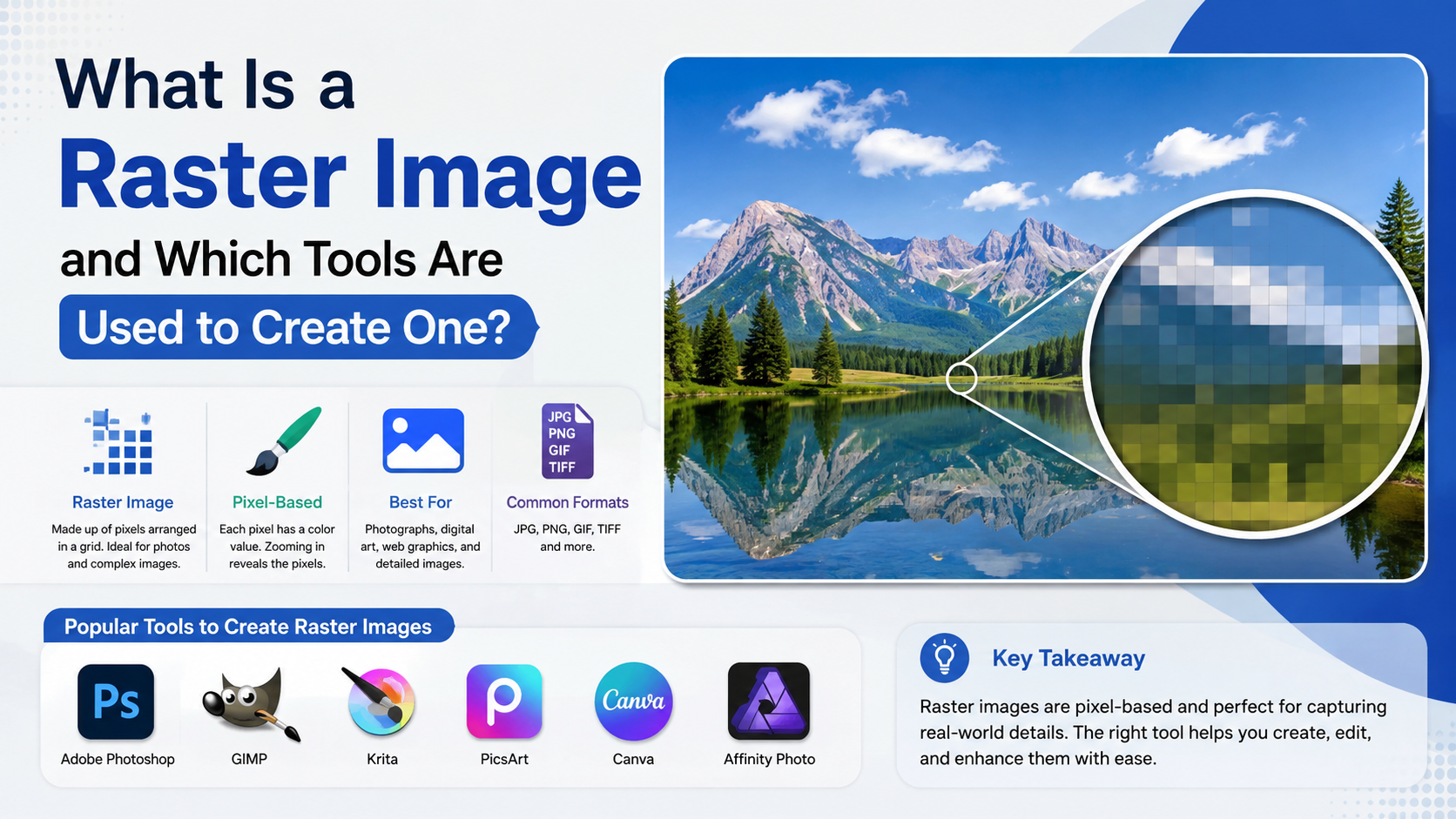
If you have taken a phone photograph, downloaded a JPEG, edited a screenshot or painted in Photoshop, you have worked with a raster image. But what is a raster image exactly? It is a digital picture made from a rectangular grid of individual pixels. Each pixel stores a colour value and position, and together the pixels form the complete image.
Raster graphics are widely used for photographs, digital paintings, scanned documents, social-media posts, website images and product pictures. This guide explains how raster images work, how they differ from vector graphics, which formats and software are suitable, and how to create a high-quality raster image for digital or print use.
Key Takeaways
- A raster image is made from a fixed grid of coloured pixels.
- Raster graphics are ideal for photographs, realistic textures and digital paintings.
- Enlarging a raster image too much can cause pixelation because the image has a limited number of pixels.
- JPEG, PNG, GIF, WebP, AVIF and TIFF are common raster formats; SVG is a vector format.
- Photoshop, GIMP, Krita, Photopea and Affinity Photo are widely used raster-editing tools.
- Choosing the correct dimensions, colour mode, file format and compression helps preserve quality.
What Is a Raster Image?
A raster image—also called a bitmap image—is composed of pixels arranged in rows and columns. Adobe describes raster images as rectangular grids in which every pixel has a specific location and colour value. Editing a raster image means changing those pixels rather than manipulating mathematical shapes.Adobe Photoshop image essentials
For example, a 1,920 × 1,080 image contains 2,073,600 pixels. A camera, scanner or graphics program records colour information for each pixel. When viewed at normal size, the pixels blend together and appear as continuous detail. When you zoom in substantially, you can see the individual square pixels.
Common examples
Raster images include:
- Photos taken with Android phones, iPhones or digital cameras
- Screenshots and screen recordings exported as still images
- Scanned certificates, forms and artwork
- Digital paintings and illustrations
- Website banners and social-media graphics
- Textures used in games, 3D models and video production
- Images embedded in presentations and PDFs
A raster image is resolution-dependent. Its quality is tied to its pixel dimensions, so a small image cannot usually be enlarged indefinitely without losing sharpness.
How Raster Graphics Work
Pixels, dimensions and colour depth
Three specifications largely determine raster-image quality:
- Pixel dimensions: Width and height, such as 2,000 × 1,500 pixels.
- Colour depth: The amount of colour information stored for each pixel, commonly expressed as bits per channel.
- Compression: The method used to reduce file size, either with or without discarding visual information.
More pixels generally allow more detail, but they also increase file size and editing requirements. A high-resolution photograph may be suitable for printing, while a smaller version loads faster on a mobile website.
Adobe notes that raster images can lose quality when resized because resizing removes or creates pixels. Images with insufficient resolution may appear pixelated when printed or displayed larger than their original dimensions.Adobe Photoshop image essentials
Raster layers and editing
Raster editors commonly use layers. A background photograph, text, adjustment and retouching can each occupy separate layers. Layers let you edit one element without permanently changing the others. Masks, selections, filters, blending modes and colour adjustments are also typical raster-editing features.
When a vector shape or text layer is rasterised, it is converted into pixels. Adobe defines rasterising as converting a vector layer into a pixel-based image.Adobe: How to rasterise in Photoshop
Raster Image Formats Explained
Different formats suit different jobs. The best choice depends on image content, transparency, editing requirements and delivery platform.
| Format | Compression | Transparency | Suitable uses |
|---|---|---|---|
| JPEG/JPG | Lossy | No | Photographs, travel images and general web pictures |
| PNG | Lossless | Yes | Logos with transparency, screenshots, diagrams and text-heavy graphics |
| GIF | Limited colour, lossless per frame | Basic | Simple animations and small graphics |
| WebP | Lossy or lossless | Yes | Fast-loading website images and animations |
| AVIF | Lossy or lossless | Yes | Modern websites requiring strong compression and high quality |
| TIFF | Usually lossless or uncompressed | Depends on workflow | Print production, scanning and archival work |
| PSD | Editable project format | Yes | Layered Photoshop projects |
| XCF | Editable project format | Yes | Layered GIMP projects |
The MDN image-format guide identifies JPEG as a common choice for lossy photographic compression, PNG for precise reproduction and transparency, and WebP or AVIF for modern web delivery. It also classifies SVG as a vector format rather than a raster format.
Keep an editable master file—such as PSD, XCF or the native format of your application—and export a copy for publishing. Repeatedly saving a JPEG can introduce additional compression artefacts.
Raster Images vs Vector Graphics
Raster and vector graphics are both digital images, but they store visual information differently.
| Characteristic | Raster | Vector |
|---|---|---|
| Basic element | Pixel | Mathematical path, point or shape |
| Scaling | Can pixelate when enlarged | Scales without normal pixelation |
| Best for | Photos, painting and textures | Logos, icons, diagrams and precise illustrations |
| Typical formats | JPEG, PNG, WebP, TIFF | SVG, EPS, AI |
| Editing approach | Modify pixels | Modify objects, paths and curves |
| File size | Often increases with dimensions and colour detail | Often efficient for simple artwork |
Krita's documentation explains that raster editing changes pixel values, whereas vector graphics are calculated from paths and coordinates and can be resized without the same loss of quality.Krita basic concepts
A company logo may be created as an SVG for flexible scaling, then exported as a PNG for a website or marketplace listing. A photograph, however, remains naturally raster-based.
Tools Used to Create Raster Images
Adobe Photoshop
Photoshop is a professional raster editor used for photo correction, compositing, retouching, digital artwork and print preparation. It supports layers, masks, filters, selections and multiple export formats. Adobe lists JPEG, GIF, PNG and TIFF among common raster formats used with Photoshop.Photoshop image essentials
It is suitable for photographers, advertising agencies, e-commerce teams and designers who need an extensive toolset. New users should save layered work as PSD and export flattened copies only when required.
GIMP
GIMP (GNU Image Manipulation Program) is a free, open-source image editor. Its official documentation includes paintbrush, pencil, airbrush, eraser, gradient, selection and colour tools.GIMP documentation GIMP paint tools
GIMP is useful for students, freelancers, small businesses and users who need advanced editing without a subscription. It runs on common desktop operating systems and supports many image formats.
Krita
Krita is designed primarily for digital painting and illustration. Its official feature list includes custom brush engines, stabilisers, layers, masks, colour management, animation tools and PSD support.Krita features
Artists can use Krita for concept art, comics, storyboards, texture painting and frame-by-frame animation. Its free software model makes it accessible to learners and independent artists in India.
Photopea
Photopea is a browser-based editor that works with both raster and vector graphics. Its documentation states that it can handle tasks ranging from resizing photographs to creating illustrations and processing images, with support for 8-, 16- and 32-bit colour depth.Photopea introduction
Because it runs in a web browser, Photopea is convenient on shared computers or when installing software is not practical. Its documentation says files can be processed locally on the device, which is useful when working with private images.
Affinity Photo
Affinity Photo provides photo-editing, painting, selections, masks, RAW development, colour management and export tools. Its documented features include 16-bit-per-channel editing, layer masks, resampling methods, RAW processing and export to PNG, JPEG, TIFF and GIF.Affinity Photo key features
Check the developer's current licensing and platform information before purchasing, as product plans and versions can change.
How to Create a Raster Image: A Practical Workflow
1. Define the final use
Decide whether the image is for:
- Instagram, YouTube or another social platform
- A website or online store
- A presentation or PDF
- A printed brochure, poster or visiting card
- A digital painting or game texture
The destination determines the required dimensions, colour mode and file format.
2. Create a document at the correct size
In your chosen editor, create a new document using pixel dimensions. For print, set the physical paper size and an appropriate resolution; for screens, specify the required pixel width and height.
Avoid creating a tiny image and planning to enlarge it later. Start with enough pixels for the largest intended output.
3. Select colour settings
Use RGB for websites, mobile apps and most digital content. Print workflows may require CMYK, but confirm the printer's specifications before converting. Keep an embedded colour profile when your workflow depends on consistent colour across devices.
4. Build with layers
Place photographs, text, logos and effects on separate layers. Name layers clearly, use masks for reversible edits and save regularly in the application's native format.
5. Edit and inspect at 100%
Use cropping, exposure correction, curves, sharpening, healing and colour adjustments as needed. Inspect the image at 100% zoom to check focus, edges, compression artefacts and unwanted noise.
6. Export an appropriate copy
Use PNG for transparency or sharp text, JPEG for ordinary photographs, and WebP or AVIF when your website workflow supports them. Retain the layered master file separately from the exported copy.
Advantages and Limitations of Raster Images
Advantages
- Represent continuous tones and photographic detail effectively
- Support realistic brushwork, shading and textures
- Work with cameras, scanners and smartphones
- Offer extensive editing through layers, masks and filters
- Are supported by virtually all websites and operating systems
Limitations
- Enlarging beyond the available resolution can produce pixelation
- High-resolution files can require substantial storage and memory
- Lossy compression can create blockiness, halos or blurred text
- Some edits become permanent after flattening or rasterising
- Simple logos may be easier to maintain as vectors
For Indian print projects, ask the printer about paper size, bleed, colour mode and accepted formats before final export. Requirements can differ between digital printers, offset presses and local photo labs.
Frequently Asked Questions
Is a JPG a raster image?
Yes. JPG or JPEG stores image information as pixels and is therefore a raster format. It uses lossy compression, which is efficient for photographs but can reduce quality when saved repeatedly.
Can a raster image be converted to a vector?
Yes, but conversion does not recreate perfect original paths automatically. Tracing software analyses pixels and generates paths. Simple logos and flat artwork usually convert more cleanly than detailed photographs.
What is the best raster format for a website?
For photographs, JPEG, WebP or AVIF may be suitable. For transparency or sharp text, PNG or lossless WebP is often preferable. Test file size and visual quality on the actual website; browser support and content-management systems can affect the final choice.MDN image-format guide
Which free tool is best for creating raster images?
GIMP is a strong general-purpose choice, while Krita is particularly suitable for digital painting. Photopea is convenient when you want a browser-based editor. Your operating system, hardware and preferred workflow should guide the decision.
Why does my image look blurry after enlarging?
The original raster file may not contain enough pixels for the new display or print size. Enlarging software can estimate additional pixels, but it cannot restore detail that was never captured. Use the highest-quality original available and avoid repeated resampling.
Conclusion
A raster image is a pixel-based picture whose appearance depends on dimensions, colour information and compression. It is the natural format for photographs, screenshots, realistic digital art and scanned documents. Photoshop, GIMP, Krita, Photopea and Affinity Photo provide different ways to create and edit raster graphics.
Choose the final output size before you begin, work non-destructively with layers, keep an editable master file and export the format that matches your purpose. With these habits, you can produce clear images for websites, social media, Indian print projects and professional creative work.